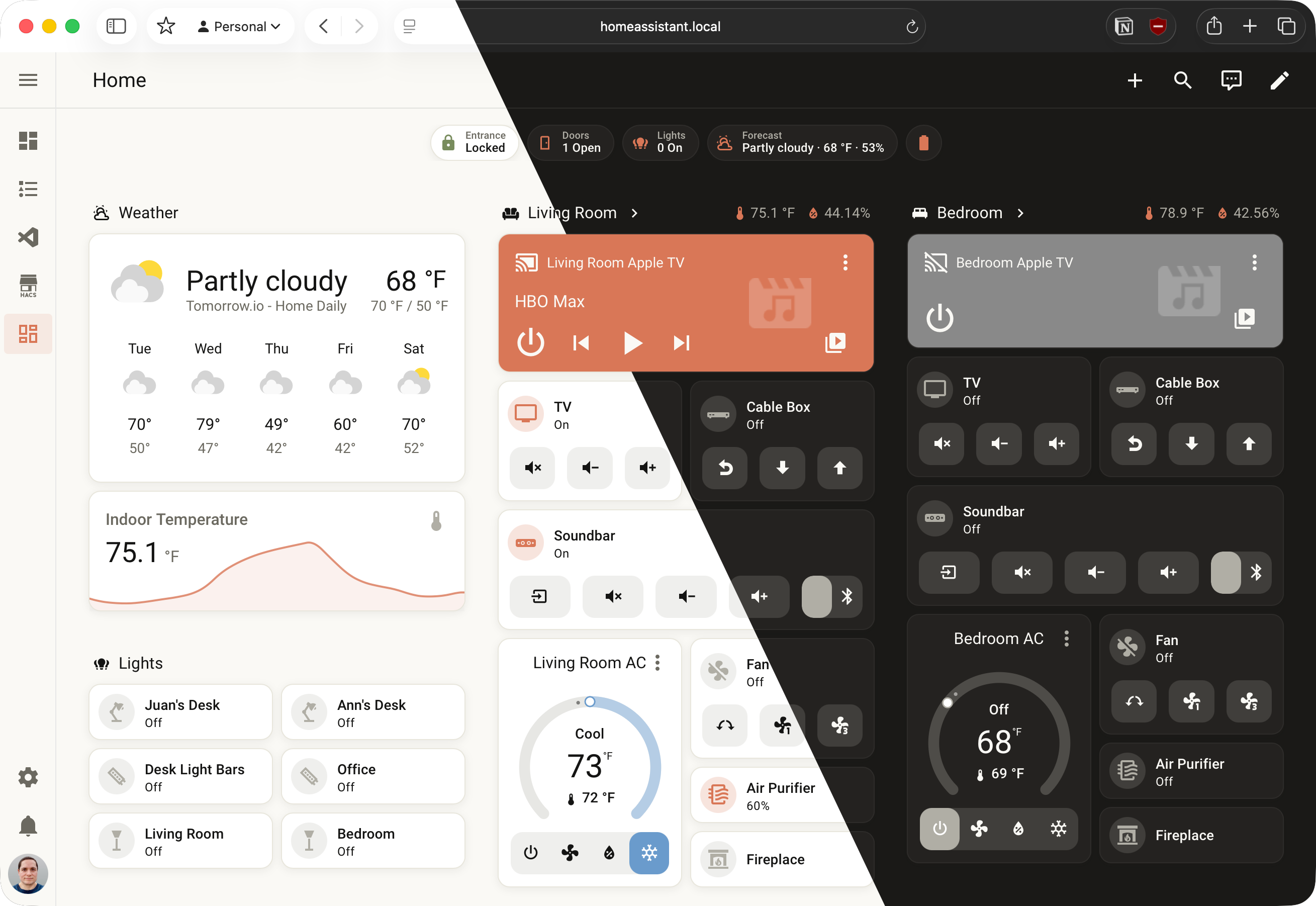
I just released a new Home Assistant theme called Warm Ink, and I wanted to write up the story behind it.
Where the Idea Came From
Most Home Assistant themes lean into one of two directions: cool and technical (lots of blues, dark backgrounds, neon accents) or brightly colorful with saturated pastel palettes. I wanted something different. Something that felt calm and lived-in rather than flashy.
The inspiration came from the Anthropic/Claude color palette. If you spend any time on claude.ai you’ll notice it has a very deliberate visual character: warm off-whites, earthy grays, and a signature terra cotta orange that shows up just enough to guide your attention without demanding it. That warmth and restraint felt like exactly the right mood for a home dashboard you look at every day.
The Palette
Warm Ink is built around nine named colors that cover the full range of what the UI needs; backgrounds, text, borders, active states, and status indicators.
| Name | Hex | Role |
|---|---|---|
| Cream | #faf9f5 |
Light mode background |
| Linen | #e8e6dc |
Light mode secondary surface |
| Sand | #b0aea5 |
Muted icons and disabled states |
| Stone | #6b6960 |
Secondary text |
| Charcoal | #3a3936 |
Dark mode surface |
| Ink | #141413 |
Dark mode background |
| Terra | #d97757 |
Primary accent — active states, toggles, highlights |
| Sky | #6a9bcc |
Accent blue — cool states, info |
| Fern | #788c5d |
Success and nature states |
The terra cotta (Terra) is the heart of the theme. It shows up on every active toggle, selected sidebar item, slider handle, focused input, and entity state highlight. It’s warm without being aggressive; more burnt sienna than traffic-cone orange.
Installing Warm Ink
Via HACS (recommended)
You’ll need HACS installed in your Home Assistant instance first.
If the theme is already in the HACS store:
- Go to HACS in your sidebar.
- Search for Warm Ink and click Download.
- Reload themes via Developer Tools → Actions →
frontend.reload_themes. - Go to your Profile page , under User Preferences, select Warm Ink from the Theme dropdown.
To add it as a custom repository:
- Open HACS from the sidebar.
- Click the three-dot menu in the top-right corner and select Custom repositories.
- Paste in the repository URL:
https://github.com/JuanMTech/Warm-Ink-Theme - Set the type to Theme and click Add.
- Search for Warm Ink in HACS and click Download.
- Reload themes and select it from your profile as described above.
Manual Installation
-
Add this to your
configuration.yaml(requires a restart if it’s your first theme):frontend: themes: !include_dir_merge_named themes/ -
Create a
themes/folder in your Home Assistant config directory if one doesn’t exist yet. -
Download
warm_ink.yamlfrom the GitHub repository and drop it in that folder. -
Reload themes: Developer Tools → Actions →
frontend.reload_themes. -
Head to your Profile page and select Warm Ink under User Preferences.
Get It
The theme is available now on GitHub:
github.com/JuanMTech/Warm-Ink-Theme
If you run into any issues or have suggestions, open an issue on the repo.
Support
As a solo creator, I dedicate my free time to maintaining this site. If you find my content useful, consider supporting the blog—every contribution helps keep the content coming.
Buy me a coffee